

HyperTerminal is an application that connects a computer to other remote systems. These systems include other computers, bulletin board systems, servers, Telnet sites, and online services. However, a modem, an Ethernet connection, or a null modem cable is needed before HyperTerminal can be used.
Menus, buttons, icons, and messages can be found within HyperTerminal’s user interface. All these elements and controls work together so as to provide convenience for the user, especially for accessing the necessary features and performing various tasks. This application is a useful tool, particularly for testing if a modem is working well and verifying if there is a stable connection with other sites.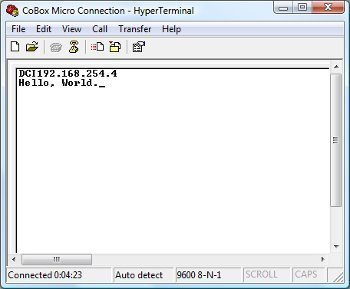
In order to check whether a modem’s settings are configured correctly or if it is connected properly, send a set of commands through HyperTerminal and view the results given. Other HyperTerminal functions include the recording of data being sent to and from the computer service connected to. Through this information, users will be able to determine the connections’ stability.
In addition, communication with the computer user on the other side of the remote connection is made possible through HyperTerminal’s scroll feature. This is a feature that allows users to receive and view texts on the screen and to send their own text messages. Another HyperTerminal feature is its option that enables file transferal from a desktop PC to a portable device such as a laptop computer via a serial port.
Furthermore, users will be able to start using the functions that HyperTerminal provides once a new connection has been configured. To do this, users need to initially open the Hyperterminal and enter the location information. Indicate this on the Location Information dialog box. Next, click on the New Connection item found on the File menu. Then enter the appropriate connection name inside the name box and select the suitable icon for it. After doing so, click OK. Choose the modem to be utilized inside the Connect to dialog box afterward.
If using a modem, enter the phone number that will be called. Thus, if connecting with TCP/IP, enter the host address and port number. Finally, once the Dial button is clicked, just wait until the computer answers the call.
wanda.carstarphen
fdgfdg
pratik
how to reset hyperterminal
memenode
AT Z is a “reset modem” command according to this.